
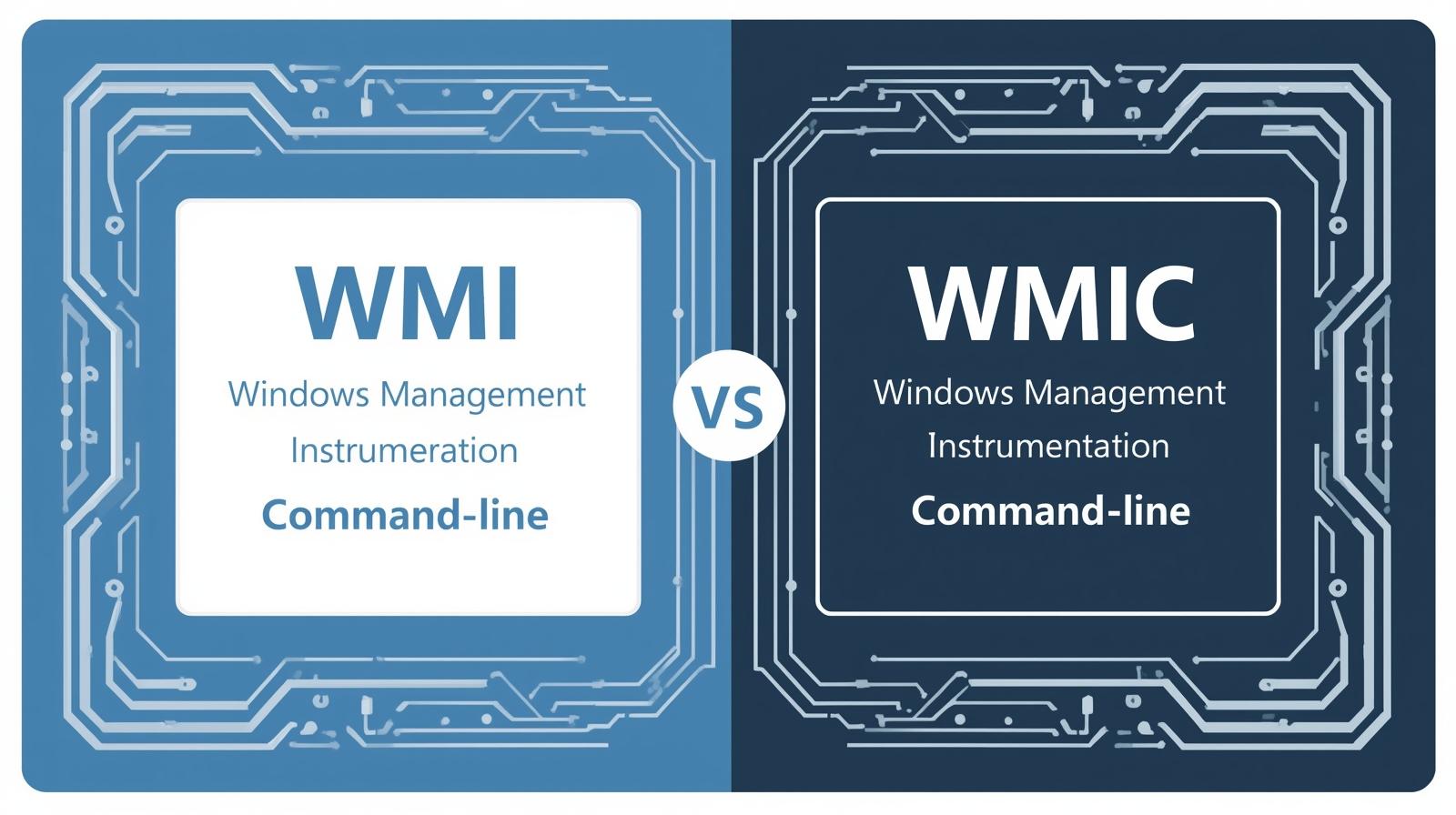
If you’ve ever had to delve deep into the inner workings of a Windows machine, you will have undoubtedly come across Windows Management Instrumentation (WMI). It’s the workhorse that runs a myriad of automated tasks, system monitoring, and administrative lifecycles. But it’s easy to get a little mixed up on WMI and its command-line cousin, WMIC.
Even though they sound the same, they play completely different parts in the world of Windows. The data is held in WMI, and WMIC is the interface to it. Whether you’re working to resolve your WMI Provider Host using high CPU, or managing endpoints across a fleet of servers, it is important to know the connection between the two for good systems management.
In this guide, we’ll discuss the different, practical uses and security risks of WMI and WMIC.
What is WMI?
Windows Management Instrumentation (WMI) is the core management technology built into the Windows operating system. It acts as the database and infrastructure that allows administrators to access, monitor, and manage system components.
WMI provides a uniform way to interact with the operating system. Whether you need to check battery status, monitor disk space, or query BIOS serial numbers, WMI standardizes how this data is retrieved. It relies on a Common Information Model (CIM) to represent systems, applications, networks, and devices as objects.
Think of WMI as the library containing all the information about your computer. It doesn’t inherently do anything on its own; it waits for a tool or script to ask it questions.
What is WMIC?
Windows Management Instrumentation Command-line (WMIC) is a scripting host used to handle WMI. Before such modern tools as PowerShell became common, WMIC was the tool that most systems administrators would use to practice querying WMI via the Command Prompt.
WMIC helps you to perform WMI tasks by enlisting the help of a tool wrapped up in a friendly interface instead of being forced to write your own or use C++. For instance, rather than creating a complex script to determine the model of a computer, you can type wmic csproduct get name at the command prompt.
Note: Starting with Windows 11 and Windows Server 2025, WMIC is deprecated and will be removed in default installations. PowerShell should be used for these operations according to Microsoft.
Key Differences Between WMI and WMIC
While they are two sides of the same coin, their functions differ significantly:
- Infrastructure vs. Tool: WMI is the underlying framework and database. WMIC is merely a command-line utility used to query that framework.
- Complexity: WMI is accessed via complex APIs, scripting languages (VBScript, C++, PowerShell), or management apps. WMIC offers a simplified, text-based syntax for quick queries.
- Status: WMI is a critical, permanent part of the OS. WMIC is a legacy tool that is actively being phased out.
WMI and WMIC Comparison
| Feature | WMI (Windows Management Instrumentation) | WMIC (WMI Command-line) |
| Role | Core Management Infrastructure | Command-line Interface Tool |
| Current Status | Active (Essential OS Component) | Deprecated (Removal in progress) |
| Primary Interface | API, PowerShell, Scripts | Command Prompt (CMD) |
| Access Method | Get-CimInstance / Get-WmiObject | wmic.exe commands |
| Output Format | Objects (Rich data) | Text / HTML / XML |
Practical Uses of WMI
WMI is high-cylinder for strong system management, and supports deep-level automation.
- System Monitoring: IT administrators rely on WMI for the collection of performance indicators such as CPU load, memory use, or thermal information.
- Remote Management: SOmploy WMI to interrogatea remote PC and return inventory or reboot a service without moving from the front of your own screen.
- Automation: WMI hooks into PowerShell scripts for automating patching, configurations, and compliance checks.
- Security Auditing: WMI is used by security checking applications to check that installed software, processes that are currently running, and items in the startup list comply with security policies.
Practical Uses of WMIC
Although deprecated, WMIC is still found in legacy scripts and older environments. It is often used for:
- Quick Information Retrieval: Finding serial numbers (wmic bios get serialnumber) or OS versions (wmic os get caption).
- Process Management: Terminating specific processes or viewing process IDs.
- Software Uninstallation: Listing and removing installed applications directly from the command prompt.
Just as a Timing Advance Processor optimizes engine efficiency by adjusting spark timing, WMIC was designed to optimize administrative efficiency by providing a direct line to system data. However, modern administration now relies on PowerShell to achieve these results more securely and effectively.
Security Considerations
Because WMI provides deep access to the operating system, it is a frequent target for attackers.
- Malicious Use: Attackers often use WMI to move laterally across a network, execute fileless malware, or maintain persistence on a compromised machine. This technique is known as “Living off the Land” because it uses legitimate OS tools for malicious purposes.
- Monitoring: It is critical to monitor WMI activity. Keep an eye on Event IDs 5857 and 5858 in the Windows Event Viewer to track WMI activity and potential errors.
- Least Privilege: Ensure that remote WMI access is restricted. Only authorized administrators should have permissions to execute WMI queries remotely.
Conclusion
The Difference Between WMI and WMIC Matters for Windows Admins Today. WMI continues to be the foundation of managing Windows environments, and WMIC is at EOL.
If you also want to also future proof the management, use Get-CimInstance with your interactions with WMI. Add the above to your system, and you’re guaranteed to always utilize the most secure, supported, and strongest pillars to hold up your systems.